
Course Progress
50%
Course Progress
Editing Text Made Simple: Let's Start with the Basics
Welcome to Day 10! Today, we're going to dive into basic text editing—how to create, edit, and format text on your computer. Whether you're writing a letter, taking notes, or crafting an email, understanding how to use a text editor will make your work easier and more polished.
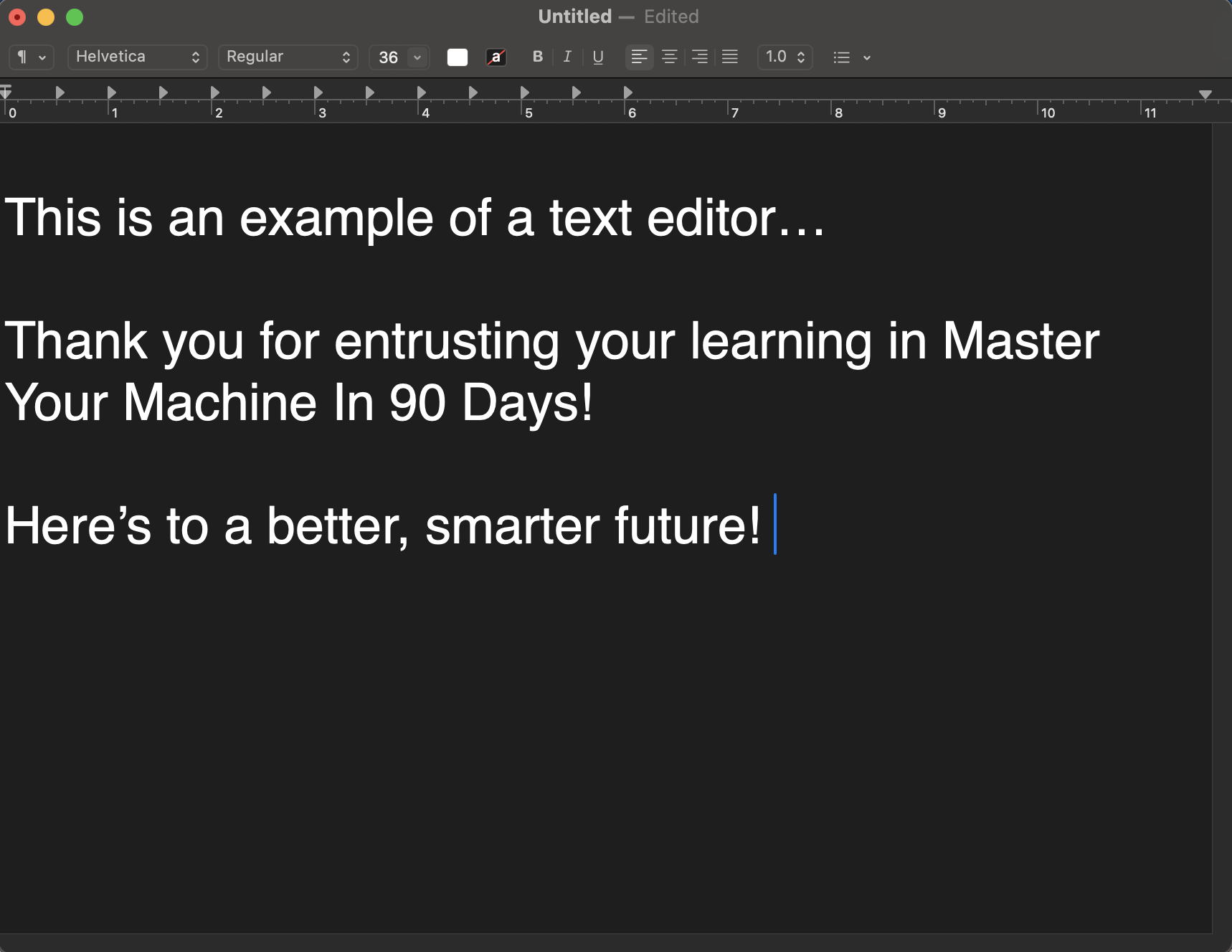
Open a text editor like Notepad (Windows) or TextEdit (Mac).
Start typing your text. If you need to delete anything, use the Backspace key to remove characters from the left or the Delete key to remove characters from the right.
Use the Enter key to start a new paragraph or move to the next line.
Highlight a portion of your text by clicking and dragging your mouse over it. Once selected, you can cut, copy, or paste that text elsewhere in the document.
To make your text more readable or visually appealing, you can format it by changing its size, style, or color. Here are some basic formatting options:
Bold: Makes your text stand out. (In many programs, use Ctrl + B or Cmd + B to apply bold formatting.)
Italic: Adds emphasis to your text. (Use Ctrl + I or Cmd + I.)
Underline: Underlines your text for emphasis. (Use Ctrl + U or Cmd + U.)
Change Font: In most text editors or word processors, you can change the font style or size from the toolbar
Understanding how to edit and format text helps you create more professional-looking documents. Whether you're writing a personal letter or a formal report, knowing how to format your text properly will improve readability and make your writing more effective.
Open a text editor and type a few sentences. Practice using Bold, Italic, and Underline on different parts of your text. Try copying and pasting a sentence to a new location in the document.
In many programs, you can use the shortcut Ctrl + Z (Windows) or Cmd + Z (Mac) to undo your last action. It's a great way to quickly fix mistakes without retyping everything!
