
Course Progress
50%
Course Progress
Browsing the Web: An Introduction to Web Browsers
It's Day 12, and today we're focusing on one of the most important tools you'll use on your computer: the web browser. A browser allows you to access the internet and view websites. Think of it as a gateway to the digital world, where you can search for information, watch videos, check emails, and more.
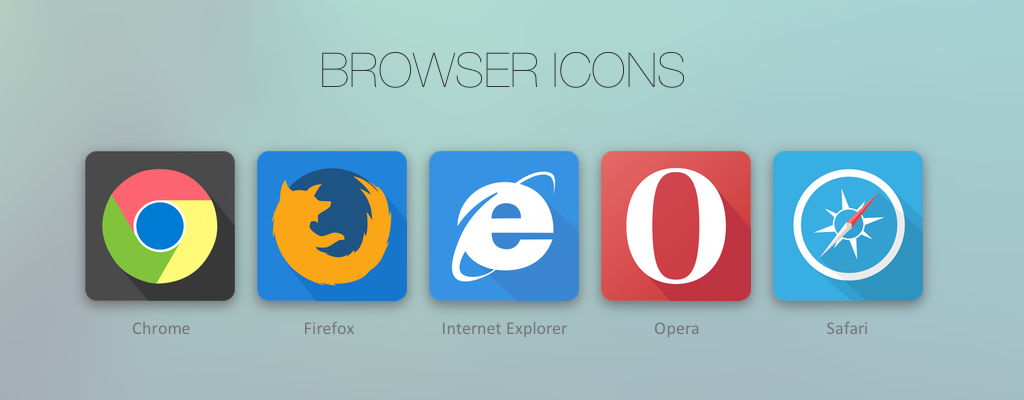
A web browser is a software application that allows you to visit websites on the internet. Some popular web browsers include:
Google Chrome: Known for its speed and simplicity.
Mozilla Firefox: Offers a range of privacy features.
Safari: The default browser for Apple devices.
Microsoft Edge: Windows' default browser, built for speed and security.
When you type a web address (also called a URL) into the browser's address bar (for example, www.google.com), the browser sends a request to the internet to retrieve that page's content. It then displays the website on your screen, so you can interact with it.
Address Bar: This is where you enter a website's address (e.g., www.facebook.com). It's like the destination field in a GPS.
Back/Forward Buttons: Use these to move back to the previous page or forward to the next page.
Tabs: You can open multiple websites at once by opening new tabs. This allows you to switch between websites without closing one.
The web browser is your main tool for accessing the internet. Knowing how to navigate it effectively will help you find information, access online services, and stay connected. Every website you visit starts with your browser, so understanding its functions is crucial.
Open your web browser and type in a web address (like www.google.com) to visit your favorite site. Practice using the back and forward buttons, and try opening a few different websites in multiple tabs.
If you visit the same websites often, consider bookmarking them. In most browsers, you can click the star icon in the address bar to save a bookmark, so you can easily access the site later without typing the address again.
