
Course Progress
50%
Course Progress
Mastering Your Mouse: Click, Scroll, and Navigate with Ease
It's Day 3, and today we're focusing on one of the most important tools you'll use on your computer: the mouse. While it may seem like a small device, it's the key to navigating everything on your screen—from opening programs to scrolling through webpages.
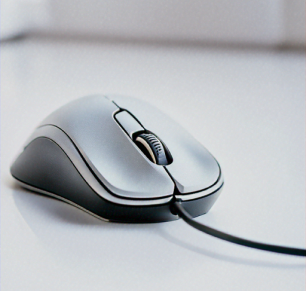
Let's break down the core functions of your mouse:
Left-Click: The left button is used for selecting items. You'll use it to click on icons, open files, or select text. Try thinking of it as a way to "choose" something on your screen.
Right-Click: The right button opens a context menu, which gives you additional options depending on what you click. For example, right-clicking a file might give you options to copy, rename, or delete it.
Scroll Wheel: If your mouse has a scroll wheel (a small wheel in the middle), you can roll it to move up and down on a page without having to drag the scrollbar.
Double-Click: Quickly clicking the left mouse button twice (double-clicking) is used to open files and programs.
The mouse is your main tool for interacting with what's on your screen. Mastering the basics will make it easier to browse the web, manage files, and interact with different programs. You'll be able to move around your computer faster and with more precision.
Spend a few minutes practicing each of these actions:
Use left-click to select a file or folder.
Try a right-click to open the context menu and explore the options.
Scroll through a webpage or document using the scroll wheel.
Double-click to open a program or folder
If you're using a laptop without a mouse, the trackpad works the same way! Instead of clicking with buttons, you can tap or press on the trackpad to mimic the mouse's actions.
